Making Telegram app style flowing camera portal
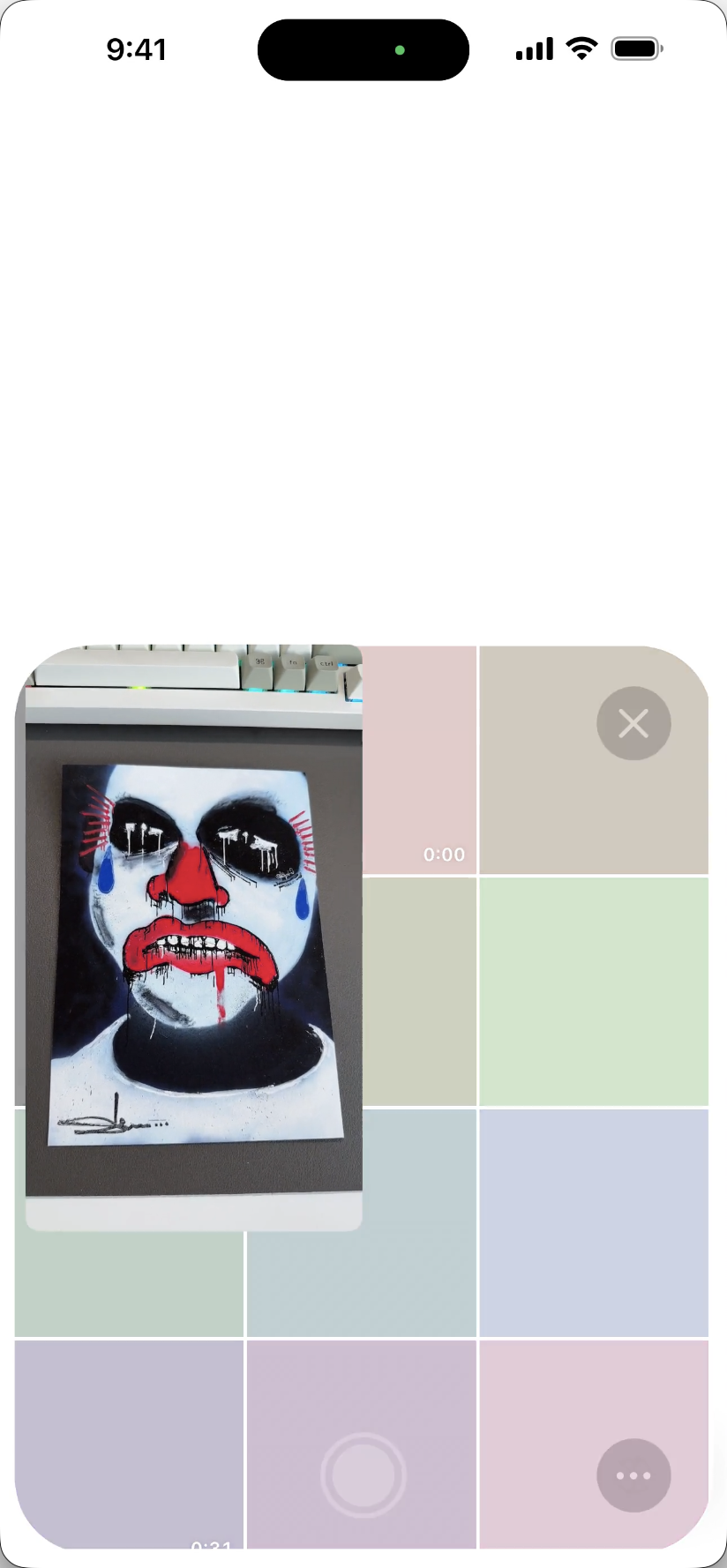
A camera portal makes a live preview expand out of a media grid and return to its cell. In this implementation, the same preview view changes parents while an animated wrapper controls its position and crop.
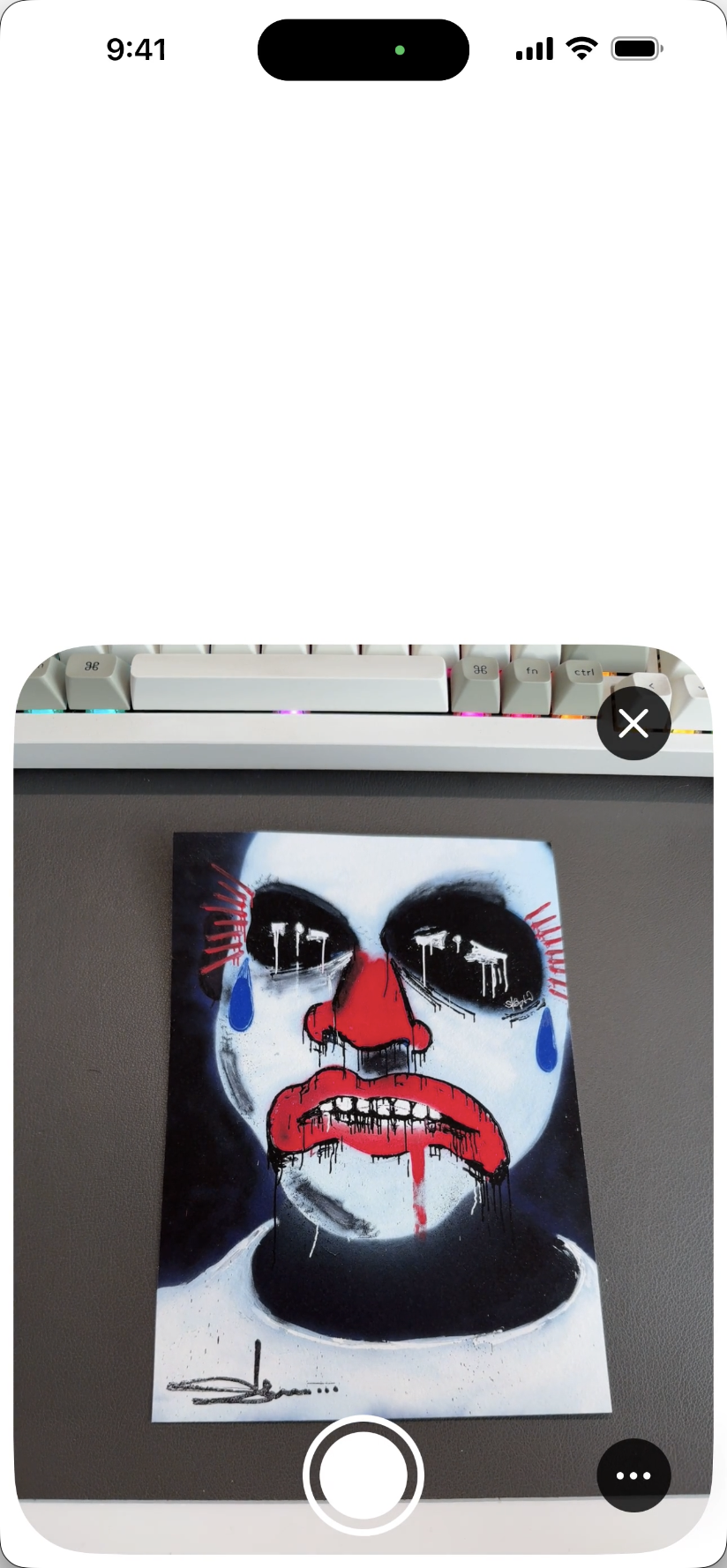
The expanded camera stays inside the attachment tray. It fills the available frame of the tray with a close button at the top right and the shutter below. The parent screen above it stays in place.
What came from Telegram
Telegram's iOS source provided the camera handoff pattern. Its media picker passes a CameraHolder containing the existing camera, preview view, original parent, and a restore closure. The camera screen takes that preview and adds it to an animation wrapper. After dismissal, the restore closure puts it back into the picker. I adapted that ownership and handoff structure. Telegram media picker, camera setup
I also adapted its transition descriptors and wrapper animation. The source and destination each describe a view and a rectangle in that view's coordinates. Telegram converts those rectangles into the camera's coordinate space, then animates the wrapper's position, bounds, and scale over 0.3 seconds. Telegram opening transition, closing transition
What keeps its identity
MediaTrayContentView creates one CameraCaptureSession and one CameraPreviewView. The preview's backing layer is an AVCaptureVideoPreviewLayer, attached to that session during initialization. Moving the view to another parent keeps that same layer and session association. Camera ownership, preview layer
Tapping the camera cell disables its tap gesture and passes those existing objects to the overlay through CameraHolder. The preview moves into the animation wrapper. Once expansion finishes, it moves into the resting canvas. Closing moves it back through the wrapper, then holder.restore() returns it to the cell and enables tapping again. Handoff and restore, preview parents
The session, preview view, and preview layer retain their identity across that transition. Their parent and geometry change. Their object identity does not.
How the frame moves
The cell starts inside a scrolling grid. Its rectangle is local to its parent, so the overlay first converts that rectangle into the tray content's coordinates. The overlay occupies the same tray bounds. Both ends of the animation can now use one coordinate space.
The preview takes the expanded canvas size before the animation starts. It keeps that size during the animation. The wrapper clips it to a smaller rectangle and scales that rectangle until it matches the camera cell.
Expanding changes the wrapper's position, bounds, scale, and corner radius. The crop opens until the full canvas is visible. The live preview does not need a new layout on every animation frame. Closing reverses the process and restores the cell-sized preview at the end. Wrapper geometry
The radius needs scale compensation too. The code divides the desired visible radius by the wrapper's scale before assigning the layer radius. This keeps the scaled corner at the intended size on screen.
All of this happens inside the tray's clipping shape. There is no separate UIWindow or private portal view in this implementation.
Reversing and dismissing
When a new animation replaces one already running, the animation helper reads the presentation layer's current visible value. It writes the new target to the model layer and animates between them. Closing halfway through opening starts at the position currently on screen. This preserves position continuity. It does not preserve spring velocity. A generation counter prevents an earlier completion from moving the preview after a newer transition has started. Animation helper
Dragging moves the preview into the wrapper again. The wrapper follows the finger and shrinks while the grid reappears. A short drag returns it to the camera canvas. Crossing the distance or velocity threshold commits dismissal. The code queries the destination again before returning. If less than 30% of the cell is visible, it uses a contained fade and shrink. Reduced Motion uses a crossfade. Drag handling, return destination
Where SwiftUI and UIKit boundaries
SwiftUI owns the chat, tray's UI and morph transition. The tray's hosted content keeps its expanded layout size while SwiftUI scales and clips the surrounding surface.
MediaTrayRepresentable creates the UIKit content and updates its inputs. A weak command handle lets SwiftUI request camera actions. Callbacks tell SwiftUI when to hide or restore the tray control.
UIKit owns the grid, capture session, live preview, camera controls, reparenting, drag gesture, and Core Animation transitions. The source explicitly keeps camera dismissal here because it drives layer animations on the reparented preview. SwiftUI screen, bridge, UIKit content
Capture lifetime is separate from that handoff. Opening and closing the expanded camera keep the session running. Closing the entire attachment tray stops capture. Reopening starts it again with the same owned objects.